
Feishu
Use one Feishu app for sign-in, directory sync, notifications, knowledge sync, and private Agent chat
The Feishu integration is a built-in singleton app: administrators save the App ID and App Secret once, and sign-in, directory sync, notifications, knowledge sync, and Agent chat share those credentials. Every feature must be enabled explicitly; enabling the integration grants no feature by itself, especially Feishu sign-in. Agent chat only receives private messages and delivers replies — execution runs on Clouisle's Agent runtime.
Where to configure it
Open Site Settings > Integrations > Feishu (/site-settings/integrations/feishu). The page is organized into tabs:
| Tab | Contents | Who can use it |
|---|---|---|
| Integration configuration | App ID/App Secret, feature switches (directory sync, user login, notification, Agent chat), sign-in button text | Administrators with service-settings permission; the sign-in switch also needs sign-in provider permission |
| Directory sync | Browse departments, save the sync scope, run a manual sync | Administrators with service-settings permission |
| Notifications | Check connectivity, choose a Feishu-bound user, send a test message | Same as above |
| Agent chat | Event delivery mode (HTTP callback or long connection), callback secrets, receiver state | Same as above |
| Feishu knowledge sync | Wiki space sources, target knowledge base, interval, manual sync | Superusers only |
The App Secret, Verification Token, and Encrypt Key are encrypted at rest; the page only reports whether each one is configured and never displays the value. Leaving a secret field blank preserves the saved value. Feature switches stay disabled until the integration itself is enabled.
Permissions
Enable the Bot capability in the Feishu developer console and grant the app-identity permissions below.
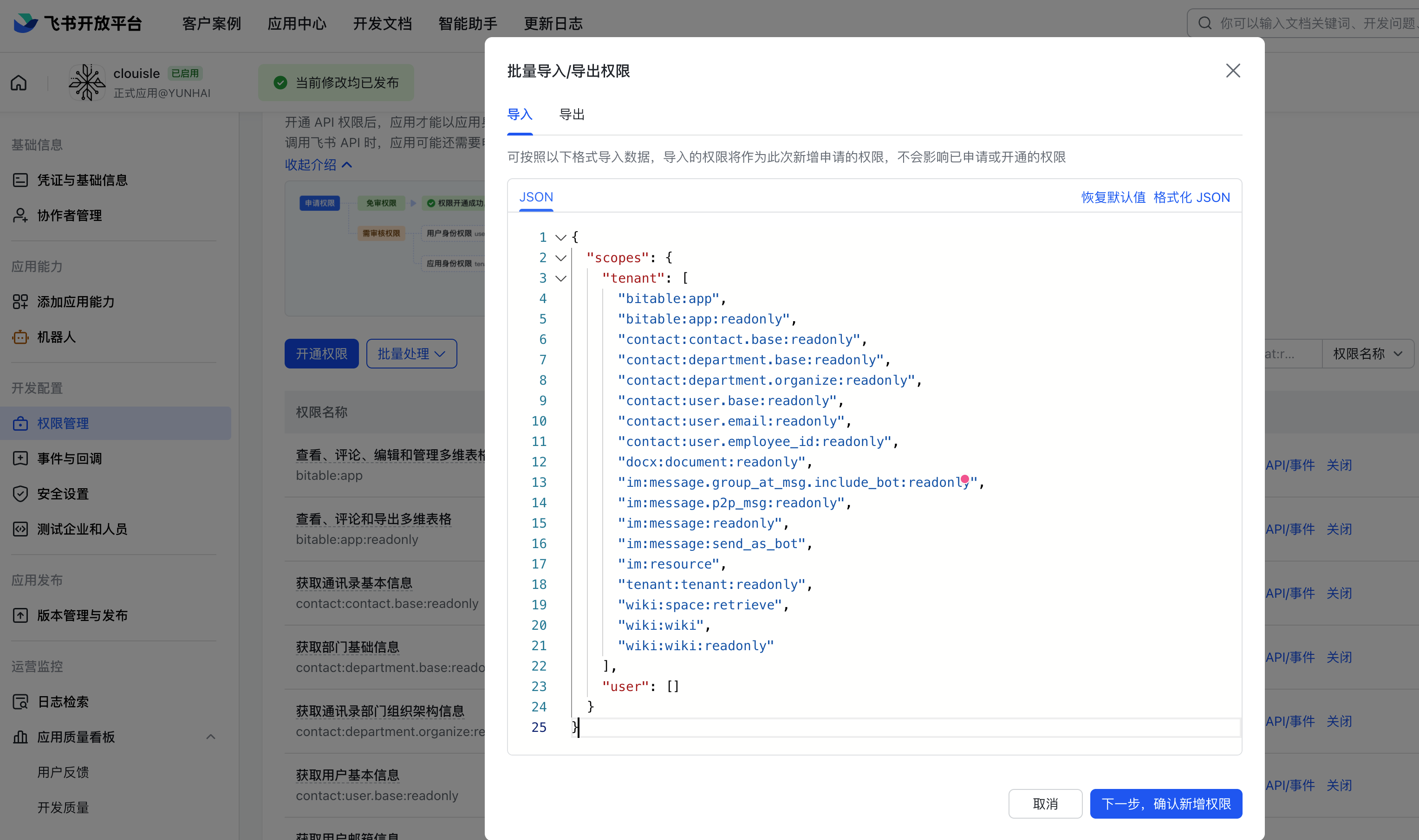
Import all permissions at once (recommended)
Selecting each scope by hand is easy to get wrong, especially the directory and knowledge sync set. Feishu's developer console accepts a batch import, so paste this JSON instead:
- Open the Feishu developer console → your app → Permission management → Batch actions → Import.
- Paste the JSON below and choose Next, confirm new permissions. Importing only adds permissions; it never changes the ones already requested or granted.
- Go back to Version management & release, create a new version, publish it, and finish any required administrator approval.
{
  "scopes": {
    "tenant": [
      "bitable:app",
      "bitable:app:readonly",
      "contact:contact.base:readonly",
      "contact:department.base:readonly",
      "contact:department.organize:readonly",
      "contact:user.base:readonly",
      "contact:user.email:readonly",
      "contact:user.employee_id:readonly",
      "docx:document:readonly",
      "im:message.group_at_msg.include_bot:readonly",
      "im:message.p2p_msg:readonly",
      "im:message:readonly",
      "im:message:send_as_bot",
      "im:resource",
      "tenant:tenant:readonly",
      "wiki:space:retrieve",
      "wiki:wiki",
      "wiki:wiki:readonly"
    ],
    "user": []
  }
}
This list covers sign-in, directory sync, notifications, Agent chat, and knowledge sync. If you enable only some of those, the extra permissions are simply unused and grant no additional data access. If you do not plan to sync Feishu knowledge, you can delete bitable:*, docx:document:readonly, and wiki:*; the import still succeeds.
Scope declaration is not data scope
The JSON imports scope declarations. A department tree that opens while sync fails usually means members are outside the app's contact data scope; knowledge sync reading nothing usually means the app lacks resource access to that space or document. Both are configured separately in the Feishu console.
What each permission is for
After importing the JSON above, use this table to verify. It lists only the scopes related to Agent chat; sign-in, directory, and knowledge sync scopes are documented in their own sections.
| Permission / event | Purpose |
|---|---|
im:message.p2p_msg:readonly | Receive private messages sent to the bot; group-mention permission is not a substitute |
im:message:send_as_bot | Send replies as the app |
im:resource | Read message attachments and upload generated images/videos/files; im:resource:upload is enough for files only |
contact:user.base:readonly | Read basic user info for identity mapping |
im.message.receive_v1 | Receive message events; required in both callback and long-connection modes |
After adding permissions, publish a new app version and complete any required administrator approval; selecting a permission does not make it effective. Inspecting original messages through Feishu's message-query interface additionally needs im:message:readonly; resource downloads use the message-resource interface. Without upload permission, text replies may work while artifacts fail.
Sign-in
Feishu web sign-in is an explicit option of the User login feature and reuses the directory-sync app credentials instead of creating a second identity provider.
- Register the redirect URL in the Feishu developer console:
https://<backend-host>/api/v1/sso/callback/feishu. The Feishu page shows this site's exact value with a copy button. - Confirm the permissions were imported and published; they include
contact:user.base:readonly,contact:user.email:readonly, andcontact:user.employee_id:readonly. - Enable global SSO under Site Settings > Security, then turn on User login on the Feishu page and optionally set the button text.
- The login page shows the Feishu button only when global SSO is enabled, the integration is enabled, and User login is on.
The external identity prefers the Feishu account's union_id and falls back to open_id, so replacing the app within the same developer account does not break existing connections. A Feishu account without an email gets a generated placeholder address (of the form feishu-<hash>@accounts.clouisle.example). Deriving it requires contact:user.employee_id:readonly; without that permission the first sign-in of such an account is rejected instead of creating a placeholder identity.
Link an existing account
A signed-in Clouisle user can open the avatar menu > Profile > Account security > Connected accounts and choose Link Feishu. Linking keeps the current account, password, email, permissions, and session; it creates no account and does not match by email.
- The link action appears only when global SSO and Feishu sign-in are both enabled.
- An identity already linked to another account is rejected rather than reassigned.
- Accounts linked this way are excluded from directory sync: later syncs do not create duplicates, overwrite local profiles, or add department-team memberships.
Directory sync
Directory sync is manual and one-way: Clouisle creates or updates local accounts and teams from selected Feishu departments. It never writes back to Feishu, and a departed or deactivated Feishu member does not deactivate the local account.
- Import the permissions and publish an app version as described in Permissions; the
contact:*andtenant:tenant:readonlyscopes directory sync needs are already included. - Configure a contact data scope in the Feishu console that contains both the departments and their members.
- On the Feishu page, enable the integration, turn on Directory sync, and save the App ID/Secret.
- Browse the department tree, select departments, and save the scope. The top-level Company node is the root department (ID
0), so selecting it selects the whole organization; any other selection includes only that department and its descendants. The tree shows only departments visible to the app. - Choose Sync selected department members. The result reports created, updated, and skipped accounts plus newly created teams.
New accounts have no local password and receive the configured default role and default team membership. Without a Feishu email they use the generated placeholder address; .example is reserved and never deliverable. Repeat syncs match by the stored Feishu user ID and update that account; email conflicts are skipped rather than merged. Each selected Feishu department maps to a Clouisle team, and a user may belong to several department teams.
Permissions and data scope are different
Granting contact read permissions is not enough. If the department tree opens but sync fails, individual members are usually outside the app's contact data scope. Historical placeholder addresses are rewritten to .example once during upgrade; no manual data fix is required.
Knowledge sync
Feishu knowledge sync imports Wiki space content into a Clouisle knowledge base. It reads content with the app's own identity rather than a signed-in user's identity and is superuser-only: ordinary integration-settings permissions neither expose the tab nor allow its use.
- Save and enable the Feishu app and import the permissions as described in Permissions. That covers Wiki, Docx, Sheets, and Base reads; to download images or attachments, also add
drive:drive.metadata:readonly(file metadata) anddocs:document.media:download(media downloads) in the Feishu console. - Beyond those scopes, grant the app resource access to the selected space and documents. Permission declarations alone are insufficient.
- Create the destination knowledge base in the intended team. When adding a source, choose a visible Wiki space and the target, then set the interval:
1–43200minutes, default60. Without an explicit embedding model, imports use the system default, which must exist and be enabled. - Enable automatic sync or choose Sync now. Automatic sync runs in the platform backend at the configured interval; no extra action is needed. The page reports each source's status, last sync time, result counts, errors, and conversion warnings.
| Source type | Import behavior |
|---|---|
Modern document docx | Rich text, headings, lists, code, quotes, todos, tables; authenticated image download and embedded attachment text extraction |
Legacy document doc | Exported to DOCX, then parsed by the existing document processor |
Spreadsheet sheet | Reads every grid worksheet in explicit row/column bands, preserving displayed values and source formulas |
Base bitable | Reads accessible tables, field definitions, and paginated records, including parseable attachment text/images |
Drive file file | Downloads and parses PDF, DOC/DOCX, TXT, MD/Markdown, HTML/HTM, CSV, XLS/XLSX, JSON, and PPTX |
Mindnote mindnote | Unsupported; Feishu's public interface excludes it, so export to a supported file first |
Permission boundary: this imports team knowledge; it does not mirror Feishu user permissions. Local team and knowledge-base permissions control reading, retrieval, citations, and sharing after import. Confirm the destination audience before enabling sync. Revocation takes effect locally only when a later sync detects it.
Imported documents are locally read-only: chunk edits, deletion, and reprocessing are unavailable. Each run scans the whole space before removing missing documents. Content changes replace the local index after successful processing while preserving the document ID; unchanged content avoids re-embedding. Download failures, incomplete scans, or processing failures preserve the previous version; only confirmed access denial removes the affected local copy. Disabling a source stops synchronization but keeps imported documents; deleting it removes its imported documents and indexes without touching unrelated local uploads.
Unsupported source types and formats are skipped rather than failed and reported as skipped/unsupported in the result. A run with no real failures is still successful and clears the previous error.
Notifications
Feishu notifications are a notification feature separate from Agent chat and require:
- The Feishu integration enabled with Notification switched on;
- Saved App ID and App Secret;
- A recipient with a Feishu identity binding created by directory sync; web sign-in or manual account linking alone does not create it.
Once those hold, manual and automatic notifications can select Feishu as an external channel. Feishu sends the title, body, and in-app link as a Markdown-rendered direct message. Unlinked or deactivated recipients receive nothing; partial delivery shows the success and total counts, and if every recipient fails the task retries under the notification retry policy. Delivery results appear in the notification detail and are separate from the messaging integration's delivery records — see Notifications and external channels.
Administrators can check connectivity, search active Feishu-bound users, and send a test message on the Notifications tab.
Agent chat
Feishu Agent chat lets a user privately message the bot and talk to their own selected published Agent. Messages enter Clouisle's Agent runtime; Feishu hosts no second Agent loop. Only private (p2p) text, file, image, and rich-text (post) messages are accepted. Group messages and bot-sent messages are ignored.
Event delivery modes
Import permissions once and publish a version before subscribing to events — see Permissions. This section covers only the receive mode itself.
Both modes are configured on the Feishu side first:
| Mode | Configuration | Characteristics |
|---|---|---|
| HTTP callback | In Feishu's Events & callbacks, register this site's event callback URL (https://<backend-host>/api/v1/integrations/feishu/callback), then save the Verification Token and Encrypt Key | Requires a public URL; supports URL-verification challenges and encrypted events; the platform validates the request signature and timestamp and rejects clearly stale requests (over 300 seconds); request body limit 64 KiB |
| Long connection (WebSocket) | In Feishu's Events & callbacks, choose long-connection event delivery and subscribe to im.message.receive_v1; select the long connection in Clouisle and save the app credentials | No public callback URL, Verification Token, or Encrypt Key; the connection is maintained automatically by the platform backend — no extra service or command |
The long connection is maintained automatically by the platform backend and takes effect as soon as the mode is saved. Turning off Agent chat or switching back to HTTP callbacks stops reception; changing the app credentials reconnects automatically.
Connected does not mean message permissions are ready
A Connected state only proves the connection is up; it does not prove private-message permissions or event subscription. If no inbound receipts appear, check that the published app version grants im:message.p2p_msg:readonly and that im.message.receive_v1 is subscribed with long-connection delivery. Send a new private message after the configuration takes effect; previously unreceived messages are not guaranteed to replay.
Identity, personal switch, and Agent selection
Inbound messages are authenticated before sender, Agent, or receipt state is read; repeated messages are deduplicated. A message must bind to an active mapped Clouisle user and that user's selected, authorized published Agent. Without a selection, the bot returns setup/command guidance and creates no Agent run.
Users save their replying Agent and turn on Enable Agent chat under Personal settings > Feishu:
- The personal switch can only be turned on while the shared channel is available; it defaults off for new users.
- Turning it on requires an available channel, a linked Feishu identity, and a saved Agent the user can access.
- Turning it off pauses new intake, queued processing, and unsent replies without deleting the selection, history, or pending state; work already started may finish. Re-enabling resumes pending work.
- Personal settings and
/useshare one preference; changes affect later messages only. /usecannot bypass a disabled personal switch; turn it back on in personal settings first.
Replies, cards, attachments, and artifacts
Final replies are delivered as Feishu interactive cards whose body is one Markdown element. Long text is split within Feishu's limit (3500 characters per message) so multi-byte characters are never cut in half.
| Type | Delivery | Limit |
|---|---|---|
| Images (JPEG, PNG, WEBP, GIF, BMP, ICO, TIFF, HEIC) | Native image message | 10 MiB |
| MP4 video | Native video message | 30 MiB |
| Other files | File message | 30 MiB |
Generated artifacts are delivered only when they belong to the final result of that run and are scoped to that exact conversation and Agent team. The recipient must still own the conversation and the Agent must still be authorized when the record is sent; otherwise the artifact is never uploaded.
Inbound attachments are downloaded through Feishu's message-resource interface, stored as conversation-private files, and attached to the current chat request. The selected Agent must enable attachments; file count, size, and extension limits still apply. Download or validation failures produce an explicit reply instead of silently discarding the message. Attachments cannot answer a pending structured question.
Commands
| Command | Chinese alias | Behavior |
|---|---|---|
/agents | /智能体 | List published Agents the user can access |
/use <number or UUID> | /使用 <编号或 UUID> | Switch the replying Agent; same preference as personal settings |
/new | /新对话 | Start a fresh conversation after the active run finishes |
/status | /状态 | Report current run status |
/stop | /停止 | Stop the selected Agent's active run |
/help | /帮助 | List available commands |
Plain text resumes a waiting run as its answer when the Agent asks a question. Commands preempt queued messages. /new does not reset while a run is active — wait or stop it first. Switching Agents never reroutes already accepted messages.
Common errors and troubleshooting
| Symptom | Likely cause | Fix |
|---|---|---|
| Long connection shows Connected but no receipts arrive | Private-message permission or event subscription is not effective, or an old app version is published | Check im:message.p2p_msg:readonly and im.message.receive_v1, publish a new version, complete approval, and send a new message |
| The connection stays waiting / reconnecting / in error | App credentials are not saved, the network is unreachable, or Feishu rejects the connection | Save the App ID/Secret again and retry; if it persists, check the connection state on the integration page |
| HTTP callback rejected (403) | Timestamp beyond 300 seconds, signature mismatch, body over 64 KiB, wrong Encrypt Key, or long-connection mode is selected | Sync server time, match the Verification Token/Encrypt Key with Feishu, and align the delivery mode with the Feishu side |
| The bot only returns setup guidance | The user has no bound Feishu identity, has not selected an Agent, or has the personal switch off | Complete directory sync or sign-in linking, select an Agent in personal settings, and enable the switch |
| Text works but files/artifacts fail | Missing im:resource upload permission, or the artifact is not part of the run's final result / team authorization changed | Grant upload permission and publish; verify the artifact's conversation and team authorization |
Feishu returns 234001 Invalid request param | Upload or message parameters rejected, such as file name, type, or size | Read the original error in the delivery log and enforce the 10 MiB image / 30 MiB file-and-video limits |
Directory sync reports 41050 or 40004 | A member or department is outside the app's contact data scope | Expand the contact data scope in the Feishu developer console and retry |
| Message says the stored Feishu app secret cannot be decrypted | The server-side encryption key changed | Save the App Secret again |
| Message says Feishu notifications are off or app credentials are missing | The notification feature is off or the App ID/Secret is missing | Enable Notification in integration configuration and save the App ID/Secret |
Related
- Delivery log — delivery state and original errors for Feishu replies and artifacts
- Notifications and external channels — channel configuration and delivery states
- Messaging integrations overview — administration vs. personal boundaries and the capability matrix
- Site settings — where Integrations sits in site administration
- Messaging integration API — Feishu configuration, directory/knowledge sync, callback, and personal preference endpoints
- SSO API — integration instances and sign-in endpoints
- Admin API — delivery-record query parameters and fields
- Roles and permissions — the two integration permission domains
How is this guide?