
Tool Connections
Prepare personal or team accounts for external tools and databases so Agents use the right identity
A tool definition answers "what can it do"; a tool connection answers "as whom". The same GitHub tool may use your personal account or a team bot account; the same database tool may point at a test or production database. Connections separate credentials from definitions so passwords never end up inside an Agent.
When a connection is needed
- An MCP server requires sign-in: OAuth, an API key, or custom headers.
- A custom HTTP tool uses auth: calling a ticketing system, CRM, or internal API.
- Database tools: PostgreSQL, MySQL, Redis, or MongoDB credentials or connection strings.
- Personal and team identities differ: you want the Agent to act as you, not with someone else's credentials.
Tools without auth (time, math, public web search) need no connection.
Two levels
| Level | Who can see it | Who can manage it | Best for |
|---|---|---|---|
| Personal | You | You | Your GitHub, your database account, OAuth grants that belong to you |
| Team | Team members | Team owner / administrators | Shared bot accounts, a unified read-only production database |
The personal settings list shows connections for the current team only. Switching teams refreshes the list; personal connections do not cross team boundaries.
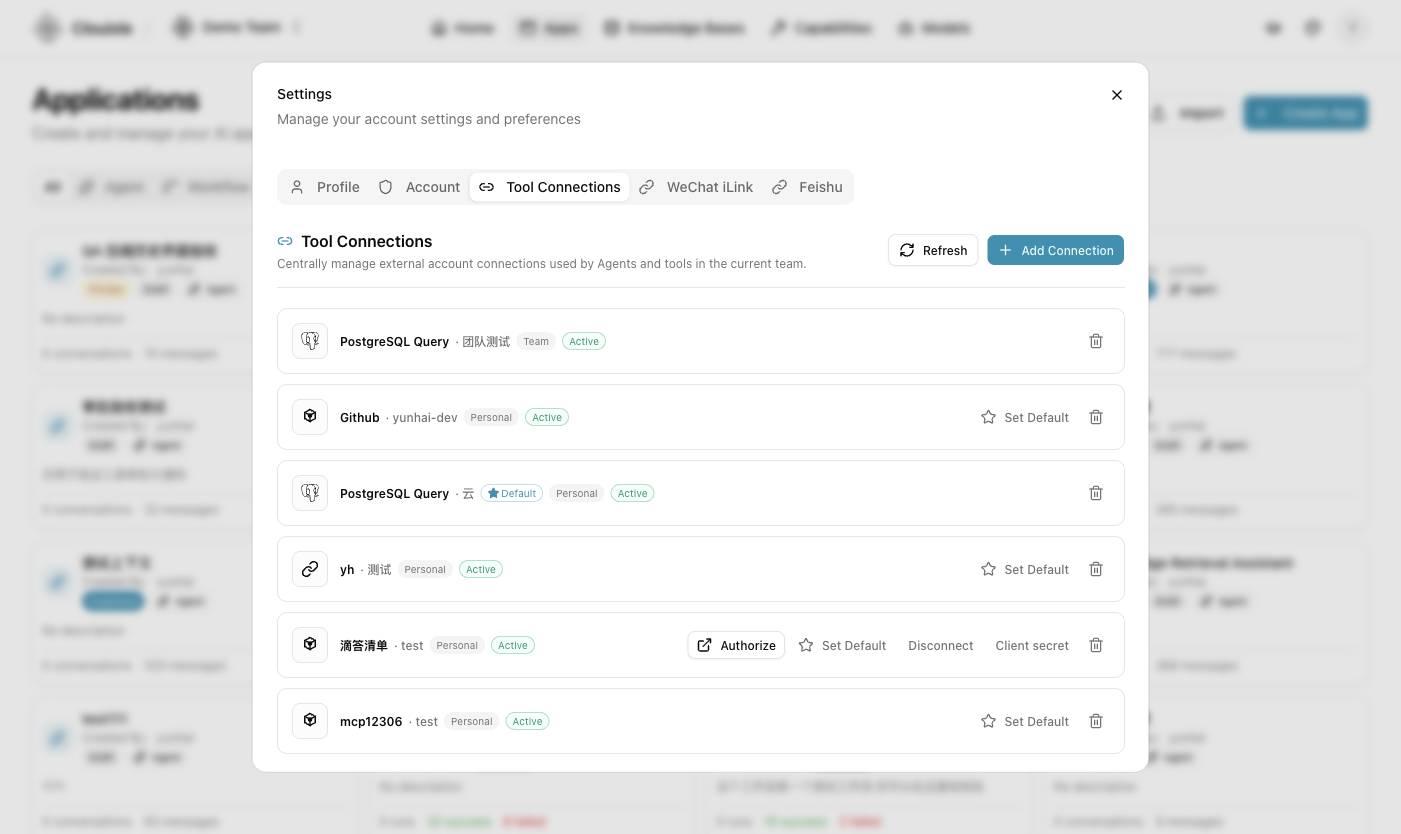
Manage personal connections
- Click the avatar in the top-right corner and choose Profile.
- Switch to the Tool Connections tab.
- The list shows the tool name, account label, level (personal/team), status, and default badge.
Add a connection
- Choose Add connection.
- Pick the tool or service from the picker. Only tools that declare connection fields are listed.
- Fill in what the tool requires:
- OAuth services: choose Connect and complete the authorization page.
- API key / headers / database fields: fill in the declared fields; passwords and secrets are write-only.
- Save. The new connection appears with status Available.
Required fields are validated individually; a missing required value blocks saving.
Set a default
A tool may have several connections (for example, two GitHub accounts). Choose Set default on one; it gets a Default badge.
When an Agent or workflow does not specify a connection:
- The default connection wins.
- If there is no default and there is exactly one personal connection, it is used automatically.
- If several personal connections exist and none is default, the run asks for a choice instead of borrowing another account.
Re-authorize and delete
| Status | Meaning | Actions |
|---|---|---|
| Available | Credentials work | Set default, disconnect OAuth, delete |
| Re-authorization required | OAuth token expired or was revoked | Choose Reconnect and sign in again |
| Unavailable | The server rejected the credential | Reconnect, or delete and recreate |
- Disconnect revokes OAuth authorization but keeps the record; the connection needs authorization again before use.
- Delete removes stored credentials. Users depending on it lose access, and it cannot be undone. Both actions ask for confirmation.
How Agents use connections
In an Agent's tool configuration, connection mode is usually one of:
- Automatic (current user): at run time, pick a connection using the default/only rule above. Best for personal assistants where each user acts as themselves.
- Fixed connection: the author pins one connection. Best for shared Agents, background jobs, and scheduled runs, which have no "current user".
Workflows, embeds, and scheduled runs are non-interactive and can only use fixed connections. Without one, the run fails with a configuration error rather than borrowing someone's account.
Security boundaries
- Credentials are stored server-side and encrypted; the API never returns secrets, passwords, or OAuth tokens to the browser.
- The list shows account labels and status, not internal field names or ciphertext.
- Personal connections are visible only as metadata to teammates; only the owner can manage them. Team connections are managed by owners and administrators.
- Shared tools are read-only: the owning team manages connections and policy.
- Revoked, expired, or out-of-team connections produce a clear error instead of silently skipping the tool.
FAQ
The Agent says a connection is required
Open the Tool Connections tab and confirm an available connection for that tool exists in the current team. If there are several, set a default. A shared Agent may be pinned to one connection; the author must change the orchestration.
OAuth still says re-authorization is required
The provider may have revoked the token, or the authorizing account lost access. Choose Reconnect; if it still fails, delete the connection and create it again.
Why is there no "add team connection" action?
Team connections are created by team owners or administrators. Regular members can view and use them but cannot create or edit team credentials.
Related pages
- Tool approvals — confirmation before calls and team policy
- MCP servers — transports and connection fields
- Custom tools — HTTP, code, and database tools
- Personal account settings — the other settings tabs
How is this guide?