

Tool Approvals and Caller Confirmation
Decide which tools run directly, which must be confirmed by the caller, and how paused runs resume
Tools let Agents do real work: write files, send messages, update tickets, query production databases. The more a tool can do, the more a mistake costs. Tool approvals give each tool an explicit boundary: run directly, always deny, or pause for caller confirmation.
Approvals decide whether one call needs a human nod. They do not replace connection identity, role permissions, or network allowlists.
Three decisions
| Decision | Runtime behavior | Best for |
|---|---|---|
| Allow | The call runs immediately | Read-only, side-effect-free, idempotent tools |
| Deny | The call fails before any side effect | Tools the Agent must never use |
| Require caller confirmation | Pause the run and wait for the initiator to approve or reject | Writes, external side effects, sensitive reads |
The policy belongs to the tool itself. It is not layered again by team, site, entry point, or workflow. The team page is a centralized editor for those tool policies; saving still changes each tool's own policy.
Where to configure it
Tool editor
When creating or editing a tool, find the Require caller confirmation switch:
- On: every call pauses for confirmation.
- Off: the tool's default decision applies. If it was previously saved as Deny, turning the switch off does not silently allow it; change the decision explicitly.
MCP tools can add overrides by operation name. The name must exactly match the exposed operation, such as tool:search; operations without a matching rule inherit the default decision.
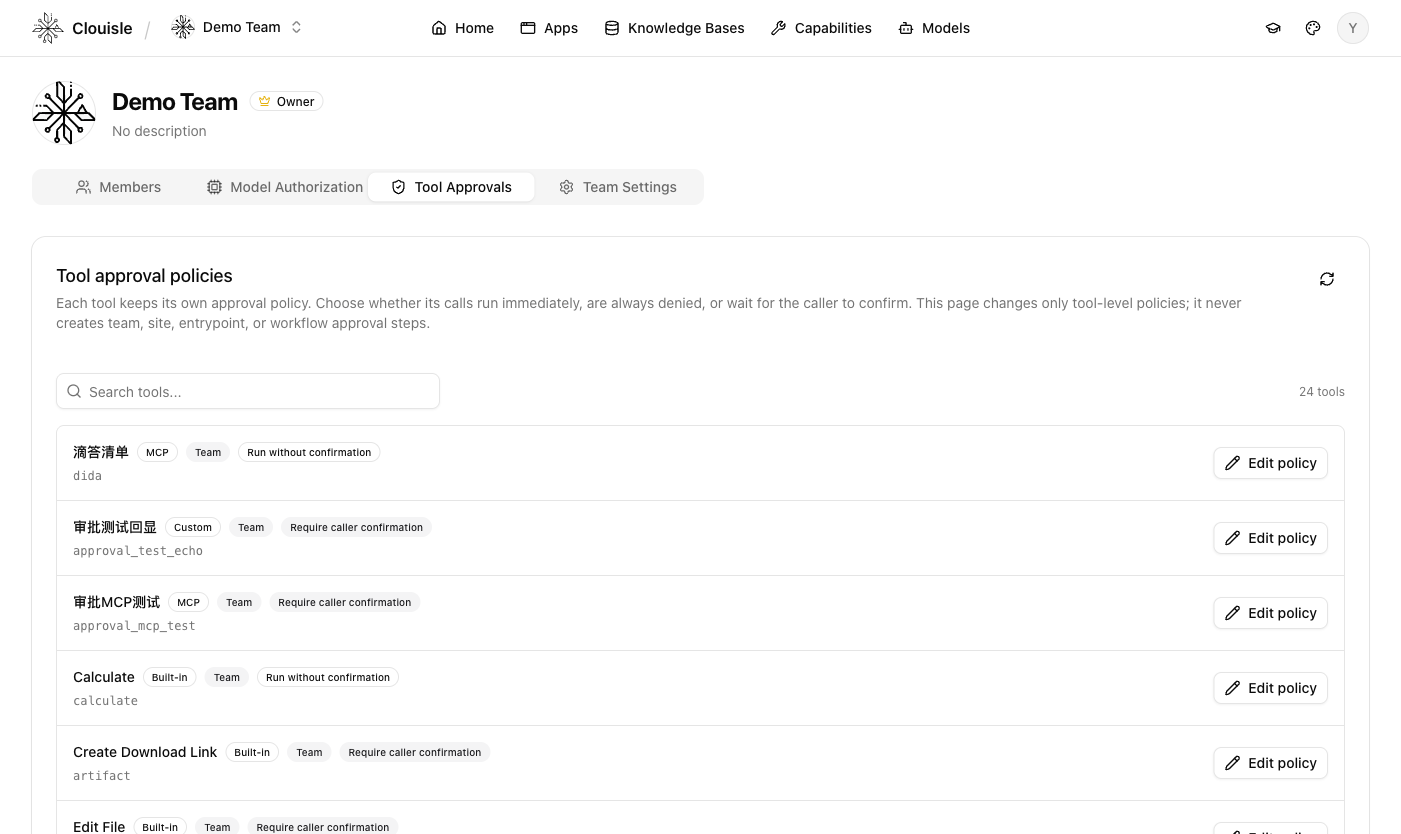
Team → Tool Approvals
- Open the current team page (
/app/team). - Switch to the Tool Approvals tab.
- The list shows built-in, custom, MCP, and shared tools visible to the team, with the current policy for each.
- Choose Edit policy:
- Pick the default decision: allow / deny / require caller confirmation.
- For MCP tools, add per-operation overrides.
- Save. Changes are written to the audit log.
This page does not create team, site, or entry-point approval layers. It edits each tool's own policy. A private tool can only be edited by its creator; a shared tool is managed by the owning team and is read-only here.
Confirmation in chat
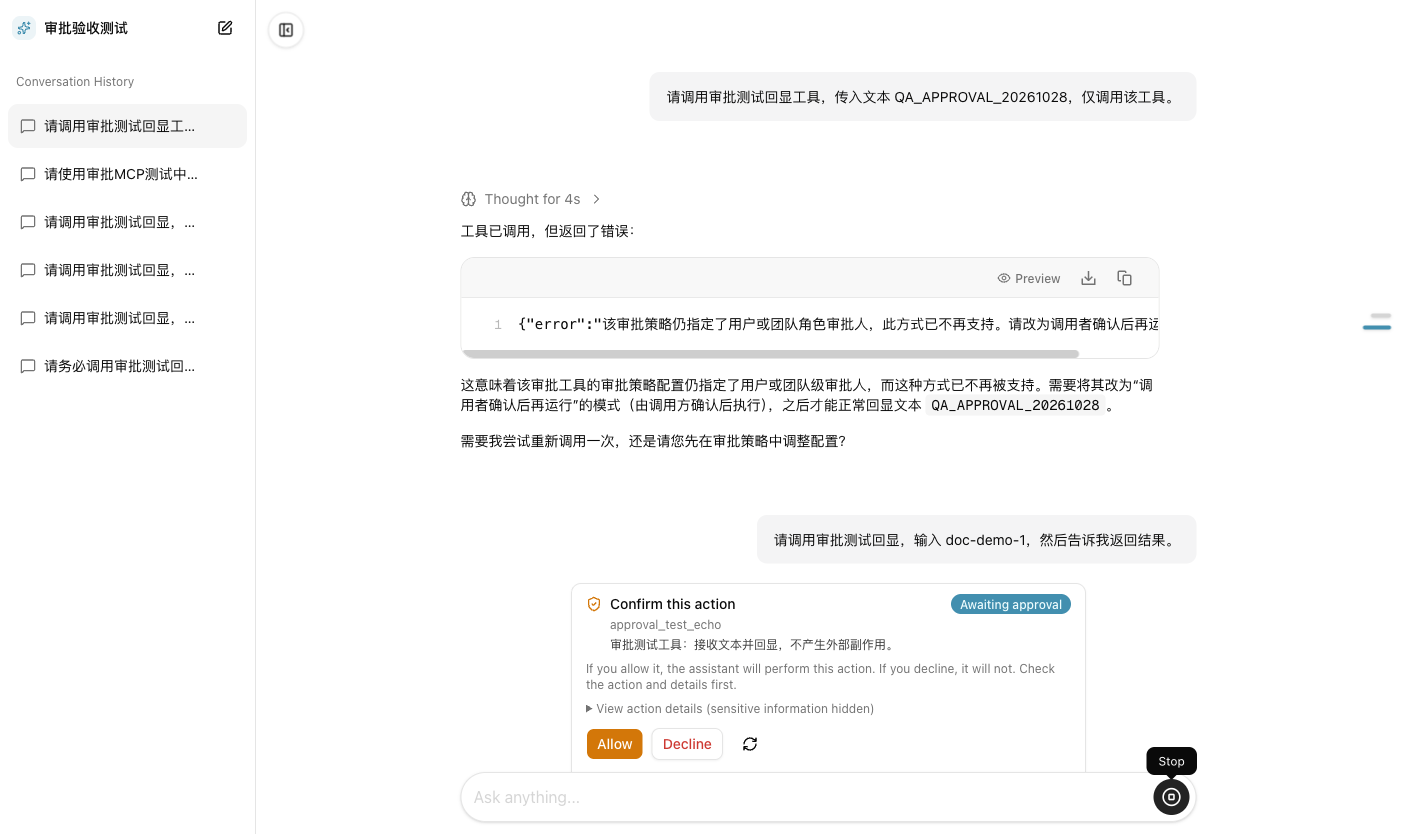
When an Agent calls a tool that requires confirmation:
- The run enters Awaiting approval; the model does not continue.
- A card appears above the composer with the tool name, description, and View action details (sensitive arguments are redacted).
- Choose Allow or Decline:
- Allow resumes from the pause and executes the call.
- Decline cancels this call; the tool never runs.
- When several calls pause together, confirm each one; they resume in their original order.
Confirmation is bound to the user who started the call:
- Team members, team administrators, and superusers cannot decide for someone else.
- Refreshing or returning to the conversation restores the pending card. Do not refresh to cancel; decline or stop the run.
- Only the initiator can decide, and the decision cannot be replayed.
- Stopping a waiting run cancels its pending confirmation.
API and external channels
| Entry point | Behavior |
|---|---|
| Web chat (JWT) | The initiating user decides on the card |
| Agent API (API key) | Only the same key that submitted the run can decide; other keys, users, and revoked keys are rejected |
| Feishu / WeChat | The bot sends a confirmation prompt; send /approve <execution UUID> to approve or /reject <execution UUID> to reject |
| Workflows | Never create approval gates, including UI, workflow API keys, and nested/sub-workflows |
| Embeds, schedules, background entry points | Non-interactive and never prompt; a tool that requires confirmation fails closed |
Runs started with an API key end their stream at the waiting event. Reconnect with after_sequence, or read and decide by execution ID. Full request bodies are in Agents API.
Legacy approval configuration
Older versions allowed specifying a user or team role as the approver. That model is removed:
- Stored legacy settings are preserved, never silently converted.
- At run time such a policy fails before the tool runs and asks for reconfiguration.
- An administrator must explicitly change it to allow, deny, or caller confirmation in the tool editor or the team Tool Approvals page, then save.
- On upgrade, unstarted executions that contain a legacy approver are cancelled rather than resumed.
Audit
These actions are written to the audit log:
- Approving or rejecting a tool execution.
- Changing a tool's approval policy.
Records include the actor, authentication method (JWT / API key), team and tool identifiers, execution and run IDs, outcome, and error code. They never store tool arguments, credentials, key material, or reviewer reasons.
FAQ
Why is there no confirmation card?
Check whether the tool's current policy is Require caller confirmation. If the Agent started before the policy changed, start a new turn; an existing run does not pause retroactively.
Can a team administrator approve on someone's behalf?
No. Confirmation belongs only to the caller. This prevents cross-user authorization and "allowing on behalf of" risks.
Why do workflows never ask for approval?
Workflows are non-interactive and cannot wait for a human. Put protected writes in Agent chat, or use read-only tools that do not need confirmation.
A tool reports a legacy approver after upgrade
The stored policy still names a user or team role. Re-save it in the tool editor or the team Tool Approvals page as one of the three supported decisions.
Related pages
- Tool connections — identity and credentials used by calls
- Chat and conversations — handling confirmations in chat
- Connect an Agent to your app (API) — how API keys decide approvals
- Audit logs — approval and policy-change records
How is this guide?